If you would like help getting started with SID then please feel free to call us on 0845 094 9183 and we will happily talk you through the basics of setting up and using SID.
A few terms that you may come across that might need explanation and are covered on our glossary page.
Overview
SID is a free application provided by Parker Franklin to their clients. It can only be used by clients who have online accounts with Parker Franklin at www.ordermyphotos.co.uk/login.asp. It provides you with a relatively real time view of the current state of all the orders that we are processing or have processed for you, statistics on your events, statistics on your pack sales, quick and easy generation of one off orders (typically orders that are drifting in late). SID is based very much on our own back end ImageProcessor program and some features and aspects of SID are determined by this relationship.
The SID Database
Each of our clients has a SID database that is unique to them. This database is loaded up to the internet typically four times a day - around 1100, 1300, 1500 and 1700 and the latest copy can be download by SID at any time. This database is READ ONLY - there would be little point in your modifying it, since the next time you download the latest copy from the internet your modifications would be overwritten. Typically this means that whenever you have a dialog presenting database information, it really does not matter whether you click OK or Cancel to exit the diaglog; in both cases nothing will be saved.
When you first run SID you will need to log into and download your SID database.
In the Log In dialog enter your client number (this is the number that appears at the top left of the table of events when you log into your on line account, it is also the fourth, fifth and sixth digits of any of your event codes). Enter your online account user name and password. Check "Remember me on this computer" if you want your log in details to be remembered so you don't have to enter them again. Click OK.
The SID database will now be downloaded from the OrderMyPhotos web site. IMPORTANT please ensure any firewall you are using allows the SID application to access then internet. This download will generally only take a couple of minutes, however the very first time SID does a download, it has to establish some communication parameters and may look suspiciously like it has locked up for several minutes. Please be patient and allow it plenty of time for this first connection.
The relevant SID database will be downloaded and the log in details checked. You will then be asked to select the folder where you want the SID database to be saved. This should be the same folder that you store all your ProofStation databases in (See Setting up your ProofStation Databases to Work with SID below).
You are now ready to get started. The information given in the points below will help you get started quickly but please contact us if you would rather be talked through.
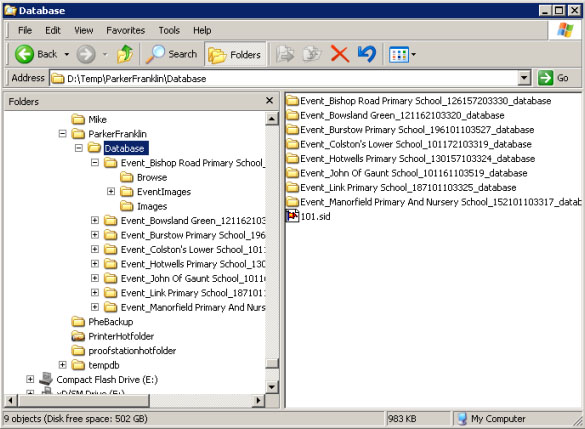
To get the most from SID you need to organise your ProofStation databases so SID can access them - this will allow you to easily view the images, search for particular images and generate orders for them. Essentially all that is required is a folder in which you place your SID database file and then each of your ProofStation databases is placed in sub folders beneath this. A typical folder organisation is shown below:
There aren't too many options that you need to set up in SID but the following options do need be set up when you first begin. First go to the menu Tools - Options:
On the General Tab it is worth ticking the option "Automatically download the latest SID database when it is opened" this means that each time you run SID it will automatically download the latest database. This only takes a couple of minutes but if you find this a nuisance then leave it un-checked. If you leave the image viewer field blank then when you ask to open an image it will be opened in your default application for JPEG files. If you don't want your default application to be used then you can browse to the one you want (for example browse to your Photoshop.exe file for this to be the application). The other settings on this tab are not important at this stage.
On the Printer Tab the two printer setups are currently only used for printing address labels and can be ignored for now.
On the Email Tab it is necessary to set up your email account settings before you can use SID to send emails to your customers or send orders to Parker Franklin. Fill in your email account settings in the Server section. You should be able to get these from your current Email client application. Note the Reply To Name is the name that will appear to the recipient of your email; it can be any text that your feel appropriate such as "John Smith Photography". The Reply To Address is the address used if the recipient of your email clicks their "Reply" button. There is only one "Email body" available in SID which is your email signature. This is a simple piece of text that will be appended to the end of each email you send using SID. You can place whatever you like in here. Note that SID only sends simple text emails and so has no formatting abilities for emails.
The different views in SID are accessed through the View menu and also by shortcut buttons for some of the more commonly used views.
System Info
This is a simple view that records stuff as it happens, such as opening or downloading a database and will always be the starting view when the program is run.
Events
This view displays all your events that are currently active on our system. We typically keep events active for a year or more before they are archived off and will no longer be visible by SID. Some summary information is retained in the Event History view (see below). Occasionally older events may appear; if orders come in for archived events, they will be brought back in from the archive and will remain active until they are archived off again. Clicking an event will make that event the currently "Active Event". Double clicking an event will bring up full details for that event.
Event Alerts
This view shows any of your events that are currently "alerted". The most common alert that an event might have is if we have not yet received the ProofStation database (and images) for it.
Event Browser
This view allows you to browse the images for the currently active event. The view is very similar to ProofStation with the same thumbnail window at the bottom and many of the same functions available such as searching and printing order forms. Also if you browse to an individual image in this view and then go straight to the Order Generator view an order for that image will automatically be generated.
Event Stats
This view allows you to see some statistics on your active events such as the take up, average order value etc.
Event Orders
This view allows you to see the status of all orders for your current events. If there is an active event it will display only orders for that event, to see orders for all events click the All button in the lower area of the right window of the application. By double clicking an individual order you can view all details about an order; when it was placed, when it was printed, when it was packed and dispatched, exactly what was ordered etc.
Order Generator
This view allows you to generate one off orders. It is functionally very similar to our OrderGenerator application. Note: as each order is generated in this view it will be automatically emailed to Parker Franklin and is therefore unsuitable for generating a large batch of orders; our OrderGenerator application should be used for this purpose, which can now be linked to your SID database making it easier to use.
Alert Orders
This view shows any of your orders that are currently "alerted". There are a number of alerts that might appear here; orders for events without a ProofStation database imported, orders that are late for printing or packing.
Sales Orders
This view displays sales information on all orders for your current events; total price of the order, client income, client charges, whether it has been reported yet (in your monthly sales reports).
Additional Client Charges
This view displays all your additional charges (generally for image re-touching). You can see which images have been worked on, what was done, how long was spent on it, how much you will be charged and whether it has been reported yet (in your monthly sales report).
Products
This view gives you a break down of all your products or packs that have been ordered, either in total or on an event by event basis. You can see quantities of each pack or product ordered and also the percentage of the total.
Event History
We only keep events active on our main database for around a year before we archive them off to keep things manageable. However when they are archived off we do retain some summary information about each event for another year or so which can be viewed here. This can be useful to compare performance of individual events with their previous year's performance.