User Interface
More Controls
Accessed by pressing the More button (see the Control pane). This enables additional less commonly used controls to be accessed including the program settings.
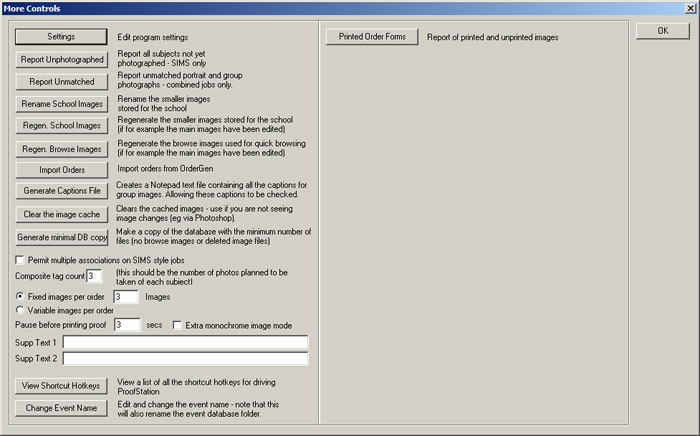
- Settings – Allows the program settings to be edited. See section Program Settings.
- Report Unphotographed – When doing a SIMS type job, generates a report of all subjects that have not yet been photographed, which can be saved to a file or printed..
- Report Unmatched – When doing a combined portrait and group job, reports all group and portrait photographs that have not yet been linked together. Either unmatched portraits or unmatched groups can be viewed and proof orders of these images printed (normally they will not be printed until they are matched).
- Rename School Images – Allows the smaller images that have been stored for the school to be renamed in a different format.
- Regen School Images – regenerates all the smaller images that have been stored for the school if, for example, the main images have been edited. Note: this can take a while if it there are a lot of images.
- Regen Browse Images – regenerates all the browse images used for quick browsing if, for example, the main images have been edited. Note: this can take a while if it there are a lot of images.
- Import Orders – Allows orders that have been taken on the day using our associated OrderGen software to be incorporated into the database before it is sent to Parker Franklin. Useful if for example ProofStation is being used for a family day or other event where orders are taken on the day.
- Generate Captions File – This will generate a simple text file (viewed or edited using Windows Notepad) with the caption data for all group images (typically class or sports team names with optionally all student names). Allowing these to be checked for mistakes before they are sent to Parker Franklin (for example if orders are printed and dispatched with typos in the the captions they will all need to be printed and dispatched again - the cost of this could negate your profit from that event).
- Clear the image cache – clears the images held in the program cache. Use this if you have made changes to an image external to ProofStation (eg in Photoshop) and are not seeing them in ProofStation.
- Generate minimal DB copy – (not yet implemented) create a copy of the database leaving out any unnecessary images. The browse images can be regenerated so these are left out along with any image files for images that have been deleted from ProofStation (ProofStation does not delete the actual image file when an image is deleted, it only removes it from the database). This results in a somewhat smaller database (depending on how many images have been deleted) which may make FTP uploading a little less painful!
- Permit multiple associations on SIMS style jobs - normally on SIMS style jobs each SIMS id can only be associated with a single image. However if you are taking multiple images of each subject and, for example, the SIMS name data is being used for captions, then you will need to associate the SIMS data with each image of the person. In this case tick this box.
- Composite Tag Count – See Composites.
- Fixed Images Per Order – when set to a number other than one, ProofStation will only generate a proof print each time that number of images has been taken. Generally used in association with a custom order form layout that has that number of images being displayed on each order form, allowing multiple poses of the same subject to be printed on a single order form.
- Variable Images Per Order – as above but this time it will only print the proof order forms when the Extra Proof button is clicked and then order forms for all images taken since the last order form was printed will be printed.
- Print n
full size prints of each image on proof: (not currently shown on the image above). If 'n' is set to a value other than 0 then each time a proof order form is printed 'n' copies of each image on the order form will be printed full page on whatever printer is currently connected. This is primarily designed for use with dye-sub printers allowing photographic quality prints to be generated along with each proof order form.
- Pause before printing proof – puts in a pause before printing the order form during which time the photographer can delete the image (either with the Delete button or the space bar) so it will not be printed or included in the database.
- Extra monochrome image mode: When this is selected ProofStation will generate a second monochrome image for every image that is brought in. Note that in this mode if you delete one image it will also delete the other (if you delete the colour one it will also delete the monochrome one and vice versa).
- Supplementary Text: There are now a maximum of 8 lines of supplementary text that now sit in the right hand pane. Each line has name (set up in ProofLayout) and any text entered will be printed in the appropriate place (as set up in ProofLayout) on the order form. For example this could be used for things like last order deadline, school name etc. The following special codes will insert data taken from the event:
- %I – inserts the image index
- %G – inserts the group name
- %C – inserts the class name from the SIMS data
- %F – inserts the subject’s first name from the SIMS data
- %L – inserts the subject’s last name from the SIMS data
- %Y – inserts the subject’s year from the SIMS data
- %% - inserts the actual ‘%’ character
- View Shortcut Keys – Opens this help up directly on the shortcuts page.
- Change Event Name - Allows the name given to this event when it was first set up to be changed. Note this is the only way the event name should ever be modified, simply changing the name of the database folder will effectively disconnect the database from all the images and other files. Using this mechanism will correctly change the name in the database and rename the database folder keeping everything synchronised.
- Printed Order Forms - view a report of all printed or un-printed images. This report can be saved to a CSV file and printed.
Copyright © 2009 Parker Franklin Ltd. www.parkerfranklin.com