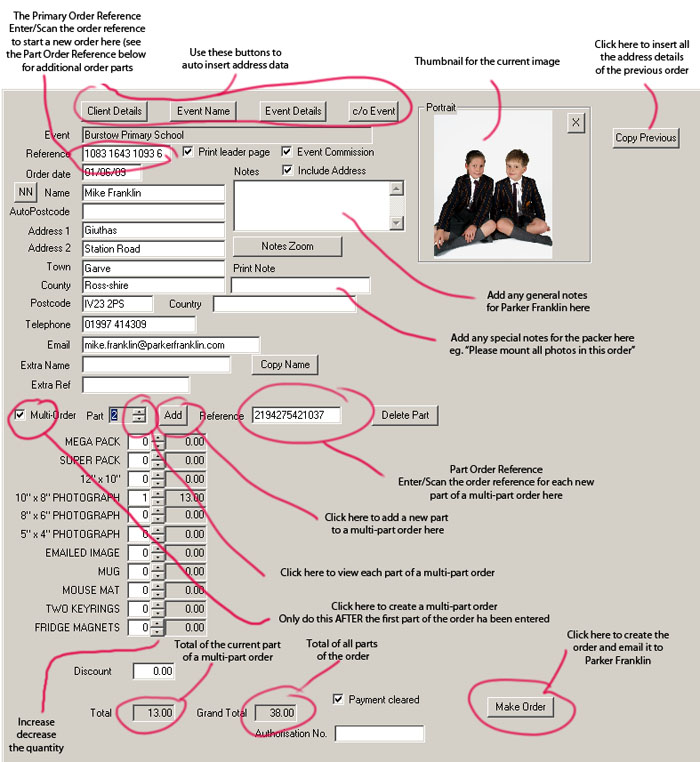
Whilst orders can be generated from SID, as with all other aspects of the program they will not be saved locally, instead as each order is created it will immediately be emailed to Parker Franklin. So each order will be sent attached to a separate email. For this reason this facility should only be used for one-off orders. If there are more than a couple of orders to be generated then it is always better to use our OrderGen program which can be downloaded free from our web site; please call us to have us talk you through using this program. Using OrderGen, multiple orders can be generated and saved to a single CSV file that can then be attached to an email to orders@ordermyphotos.co.uk. The benefit of this approach is that large numbers of orders can be generated and emailed to us in a batch and it will also give you totals for that batch.
There are two ways to start a new order:
Enter the name and address for the customer - use the buttons at the top to automatically enter your address or the event host's address if that is where you want the order posted. See the bottom of this page for information on the auto-postcode mechanism.
Enter the quantity required for each pack.
If another image is required for the same order then a multi-order can be created so that all the order parts will be sent together (and you are likely to get additional discounts on your print charges!). After the first order reference and all the order details for it have been entered, click the Multi-Order check box. Some additional controls will now appear and the cursor will be placed in the Part Order Reference box. Enter or scan the new image order reference and add the quantities required as before. To add additional parts simply click the Add button and repeat.
Once you have finished entering the order details click the Make Order button and the order will be created and emailed direct to Parker Franklin. Note: before doing this you must have set up your email account details in the Program Options. After the order has been finished in this way all details will be cleared and the cursor placed in the primary order reference box ready for another order reference to be entered or scanned. However, as noted at the top of this page, this is an inappropriate mechanism to use for large numbers of orders, for that situation you should use our OrderGen software.
Sending the image with the order
There is check box immediately above the Make Order button labeled "Send images with order" (currently not shown on the image below). If this is checked then all the images associated with the order will be attached to the email that is sent to Parker Franklin. This allows you to do your own retouching on images but only doing them when an images has actually been ordered and then having that image sent to us with the order. Effectively you can now send a job to us without any images and only send them as and when an order is placed, however if we already have the image then the image you send will overwrite the existing one (a copy will automatically be made first).
SID can automatically generate addresses from the postcode in two ways.
AFD
SID can interface to a postcode database provided by a company called AFD Software. This database costs around £150 to purchase initially and then around £85 per year renewal after that. It can also work with other applications such as word processors. If you are interested please speak to us about how to set it up to work with SID. You must set the AFD check box in the General tab of Tools - Options to use it.
SID's Internal Auto Postcode Mechanism
SID can also generate its own postcode database by remembering postcodes you have already used. You must first specify a file for it to store the postcodes in the General tab of Tools - Options. After this it will remember any postcodes that you enter. Obviously at first you will have to enter full details yourself but it should gradually come to remember addresses relevant to the area you work in. For more details on using this facility please speak directly to Parker Franklin.