In the Event Browser view there is a window of thumbnails at the bottom of the view. Right clicking selected thumbnails will bring up a pop-up menu with options that do not appear in any of the main menus. The options available here are essentially the same as the options available in ProofStation.
All the print options below will use the report printer (see Tool - Options).
Print multi-image proof order for each of the selected orders.
Print individual proof orders for each of the selected orders. Note even if the event uses multi-image proof order forms, this option will only print one image per order form. To print multi-image proof order forms see the option above.
You will be asked how many order forms you wish to be printed and it will print that number of order forms for each image. Generally used with group images.
Only available for group photo events with names. A page will be printed with the image on it and the name captions below it; used for the school to verify that all the names are correct and in the correct position. Note: if you have accidentally got the rows of names the wrong way around just let us know - we can switch the order of rows (so long as you have done it consistently throughout the job).
Prints the selected images full page. Note if the report printer is set to a dye sub printer this will print a full photo quality print of the image.
Prints multiple copies of the selected images full page. Note if the report printer is set to a dye sub printer this will print a full photo quality print of the image.
Reprints multi-image order forms for all images in the selection that have already been printed before.
Displays detailed information for the selected image. For a SIMS job the SIMS data will be displayed.
Copies all the selected images out of the database to a selected folder.
Copies all the selected images out of the database to a selected folder applying and cropping and colour adjustments.
Opens up a web browser on our OrderMyPhotos web pages and automatically enters the appropriate order reference.
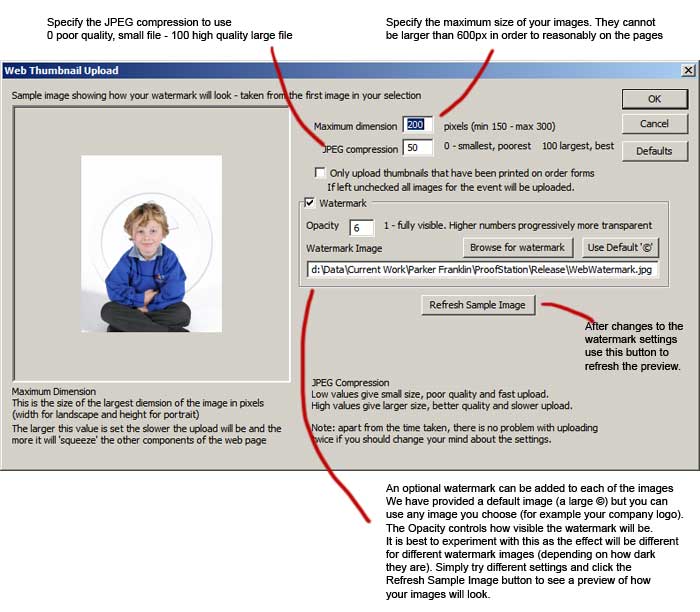
Allows you to upload thumbnails for the selected event to the web so they will be visible when customers have entered their order reference number (the customer is also given the option online to have the image removed after they have finished their order). You will be presented with an options dialog giving - see below for details.
Larger image sizes and/or better quality JPEG compression will result in larger thumbnail image file sizes and so increase the time to upload your thumbnails.
Apart from the time taken, there is no problem with uploading twice if you should change your mind about the settings; the existing thumbnails will simply be overwritten.
Note: thumbnails will appear on the
website with the same orientation and cropping as here. If you have a mixture of portrait and landscape orientations and you want them to appear correctly then you should ensure they appear correctly here before uploading them.