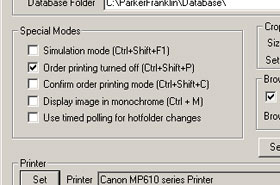
There are a number of special modes that can be used. These can be set using the Program Settings or using shortcut keys.
This mode is for demonstration purposes only. Before it can be used, simulation directories must be set up. This is done by hitting Ctrl+Shift+S allowing two directories to be set up; a source and target directory. Images will be moved (no original will be left) from the Source folder (in the order that they are found) to the target folder. The target folder should be the same as the source hot folder set up in the Program Settings, so that each copy simulates an image being taken by a camera. Each simulation is activated by the F2 key.
In this mode order form proofs are no longer automatically printed when images are taken. However they can still be printed manually using the Extra Proof button or any of the thumbnail print options. Using this mode allows a number of images to be selected and then the best images found by browsing through them and an order form proof generated for only this image using the Extra Proof key or thumbnail print options.
This mode allows several images to be taken without reference to the computer screen. The images will be queued until each has been confirmed. A dialog will be offered giving three choices activated by typing one of three keyboard keys:
| Key | Action |
P |
Accept the image and print the order proof |
D |
Discard the image – it will not be stored in the database and no order proof will be printed |
Space |
Save the image in the database but do not print an order proof |
Note that this dialog will not be offered if Order Printing is turned off (see above). Saving the image but not printing allows you to come back to this image later by browsing and maybe printing an order proof if desired.
In this mode the main image will be displayed in monochrome as opposed to colour. Note this will slow things down a little especially when viewing at full resolution.
On very rare occasions (eg running ProofStation in Windows emulation on a Mac) we have come across problems where ProofStation does get properly notified of changes to the hotfolder and therefore does not detect images arriving in it. Under these circumstances this mode can be applied; in which ProofStation, instead of waiting for a notification from Windows, will automatically check the hotfolder once a second and load any new images it finds there. We would advise discussing this with Parker Franklin before using it.