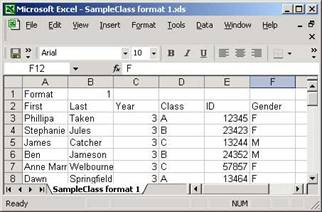

Format 1
Schools with databases such as SIMS may want to have a set of smaller copies of all your images for importing into their database.
There are two ways the images can be supplied to the school.
The first step with any school you are servicing is to ascertain what database software they are using. The most common in use in the UK is SIMS.
Although it is free to individually associate images with each pupil’s file. With SIMS databases they do charge a fee for an automatic batch uploading service. At larger schools this service can save the office staff a lot of time in administration. There are two ways to obtain this service for your school.
Of course with the second option you may choose to include a full refund of that money with any commission paid.
ProofStation is capable of producing images in the correct format for importing to SIMS.
All other school databases are currently free to use their batch uploading facilities.
SIMS and Group names data must be provided by the Event hosts as either spreadsheet files or CSV (comma separated files). If Spreadsheets are provided then they must be converted to CSV files before importing them into ProofStation. The CSV file can easily be generated from an Excel spreadsheet file by selecting Save As and then choosing CSV (Comma delimited) (*.csv) in the Save as type field. There may be some complaints from the spreadsheet about loss of information but this is only format information, which can be safely disregarded.
You will then need the school to run a report for each student and staff. This document typically needs to contain at least the following:
Forename
Surname
Class
Administration Number (this is a unique number generated by the schools database and is the essential number that is needed for batch uploading)
This information in may be provided in many different formats; however it is not a problem for our software to deal with different formats ProofStation can handle a number of “standard” formats as shown below but in reality it is more common for you to use the custom format option which can handle pretty much any format they might provide.
ProofStation’s standard formats are shown below and instructions for our custom mechanism that will cope with any format are below them. This custom format import is actually more commonly used.
Note: the first line contains two fields; the first must contain the word Format exactly as is, the second contains the format number, these fields will need to be added to anything provided by the school. Three formats are currently permitted; format 1 is illustrated first below, format 2 has only the First, Last, Year and Class columns and format 3 has only the First and Last columns. The title line (second lien) must be present but the title text itself does not need to match those shown exactly. Examples are shown below:
Format 1
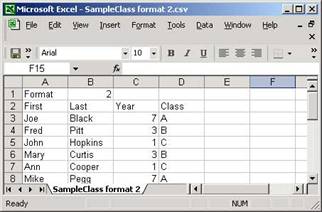
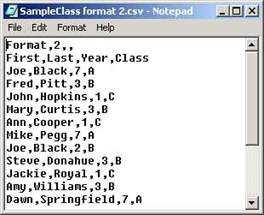
Format 2
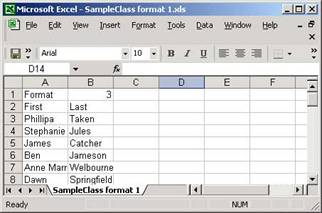
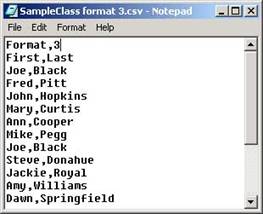
Format 3
The school may also provide formats with columns such as:
Admin Number, Forename, Surname, Class
Or
Class, Admin Number, Surname, Forename
Our software can deal with any format that is supplied. You might find that the school may have included extra details like date of birth and gender; again our software will happily deal with it. The custom file set up shown below makes it very easy and saves you having to contact the school for another format that will work.
At the import data dialog you can click the Import custom names data file button, giving the following dialog allowing you to define a specific non-standard format:
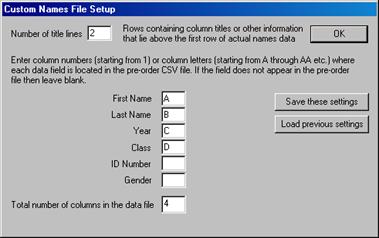
When you have the file from the school you will need to open it in Windows Excel and then note which column each of your information appears in.
The number of title lines is the number of rows that exist before the first row containing actual data.
The column letters identify which column the data is contained in allowing the actual columns to be organised in any order and even have unused columns that can be ignored.
The total number of columns is the actual number of columns that exist in the file.
These settings cam be saved to a named file and loaded again at a later date if it is likely that you will need to use them future. Simply click the Save these settings or the Load previous settings buttons.
IMPORTANT: the spreadsheet file must be saved as a CSV file before it can be loaded into ProofStation (as described earlier in this appendix)
If you are unsure about the CSV file then get Parker Franklin to check it for you.
After importing the data you have a number of options:
Please ensure that you have printed your barcodes well in advance of the event!
We will endeavour to assist you and, if necessary, your schools in all matters. If you are unsure we can have one of our staff be on site with you on your very first job.
We also hold free training days at our Redhill Lab, please contact us for further information.